Using OpenAI Conversions can help you get a better understanding of the impact of your online advertising on conversions, which can lead to more effective campaigns and better ROI.
How to add a sync?
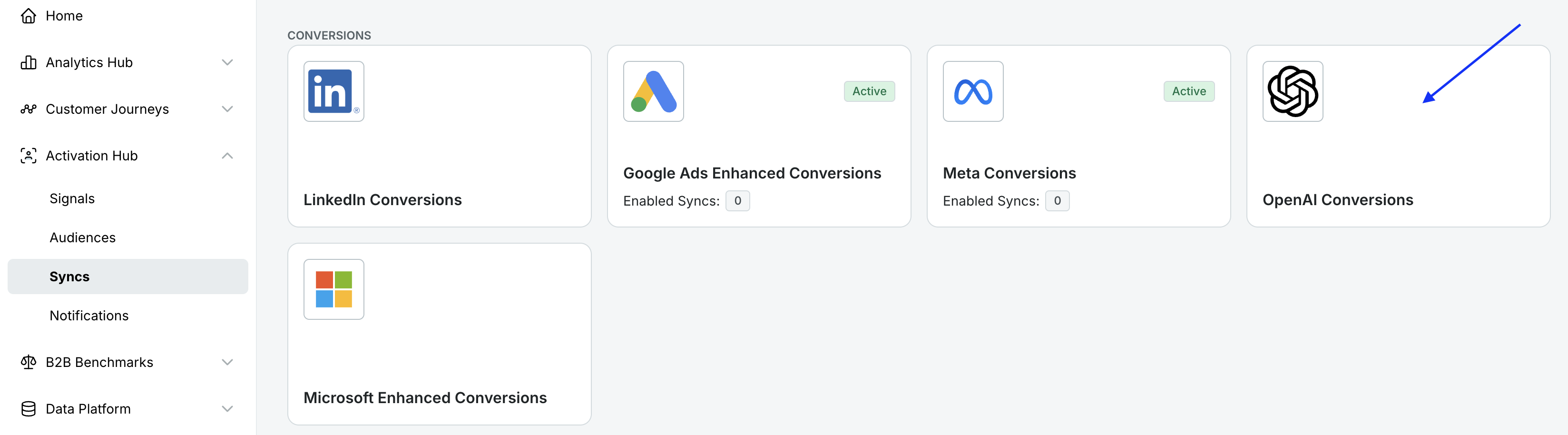
On Dreamdata's main menu, navigate to Activation Hub -> Syncs and select OpenAI Conversions.
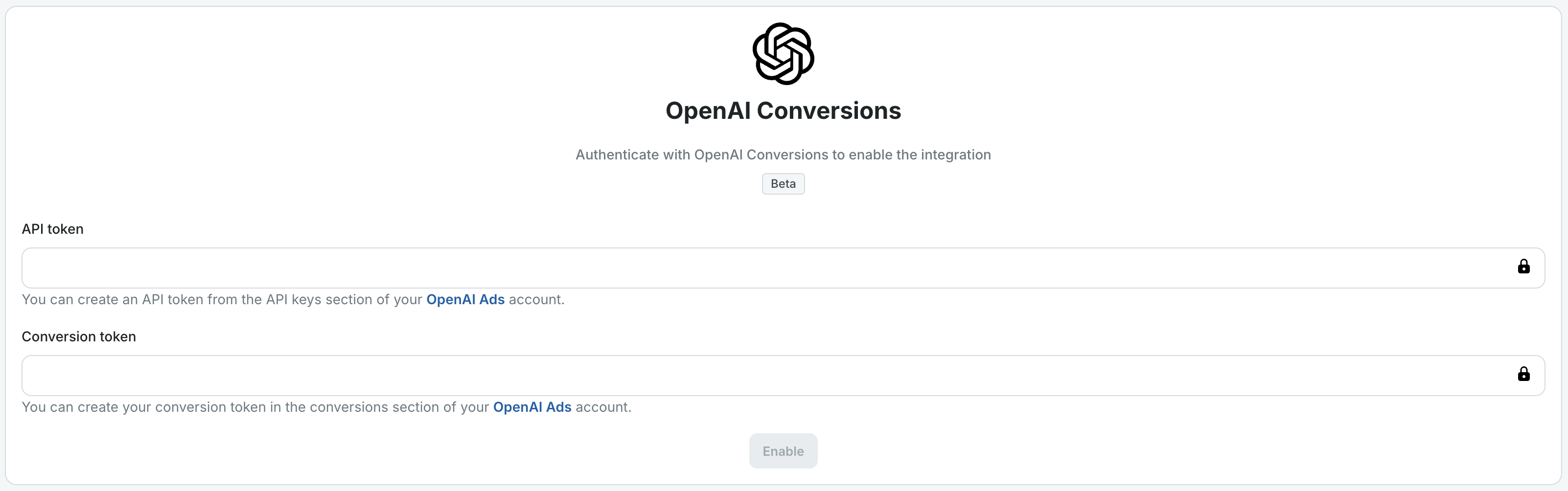
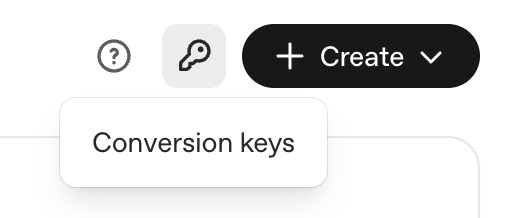
Add your API token and Conversion token and click Enable.You can create a Conversion token by navigating to the Conversions section in your OpenAI Ads Manager and clicking the key icon on the upper right corner. Make sure you save the key in a safe place.
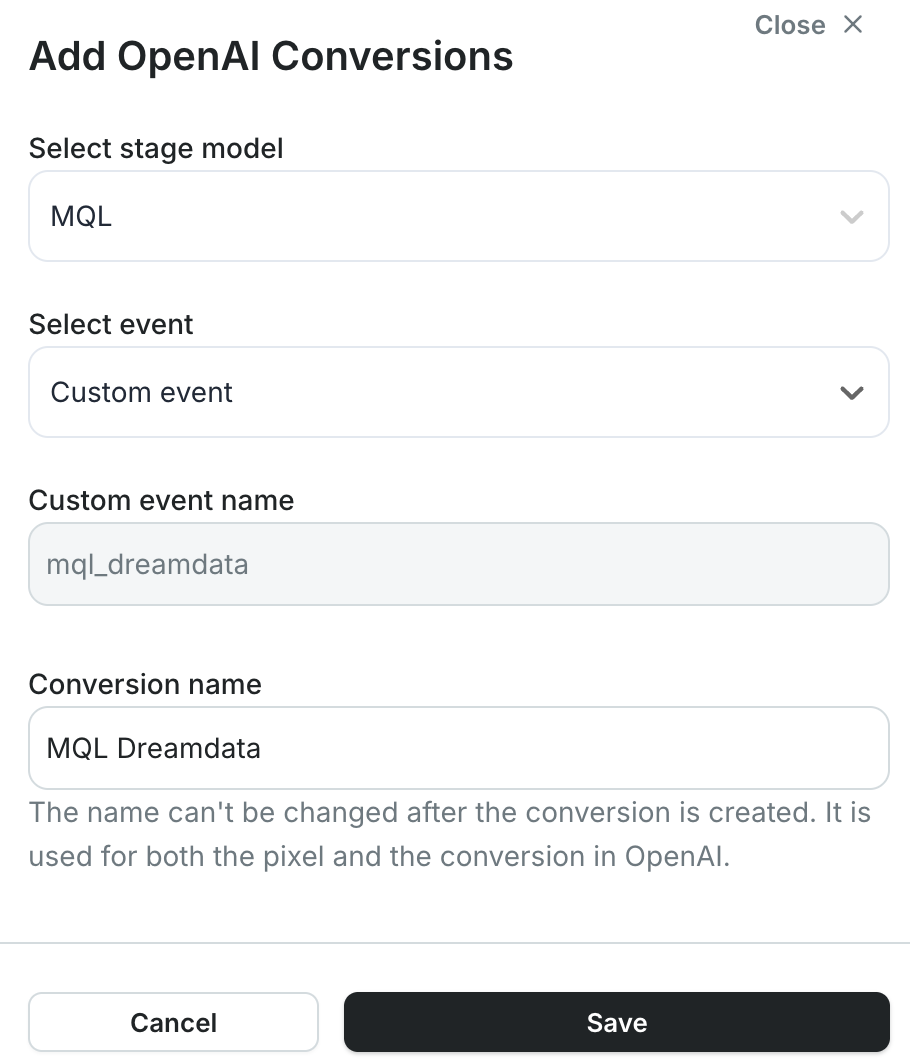
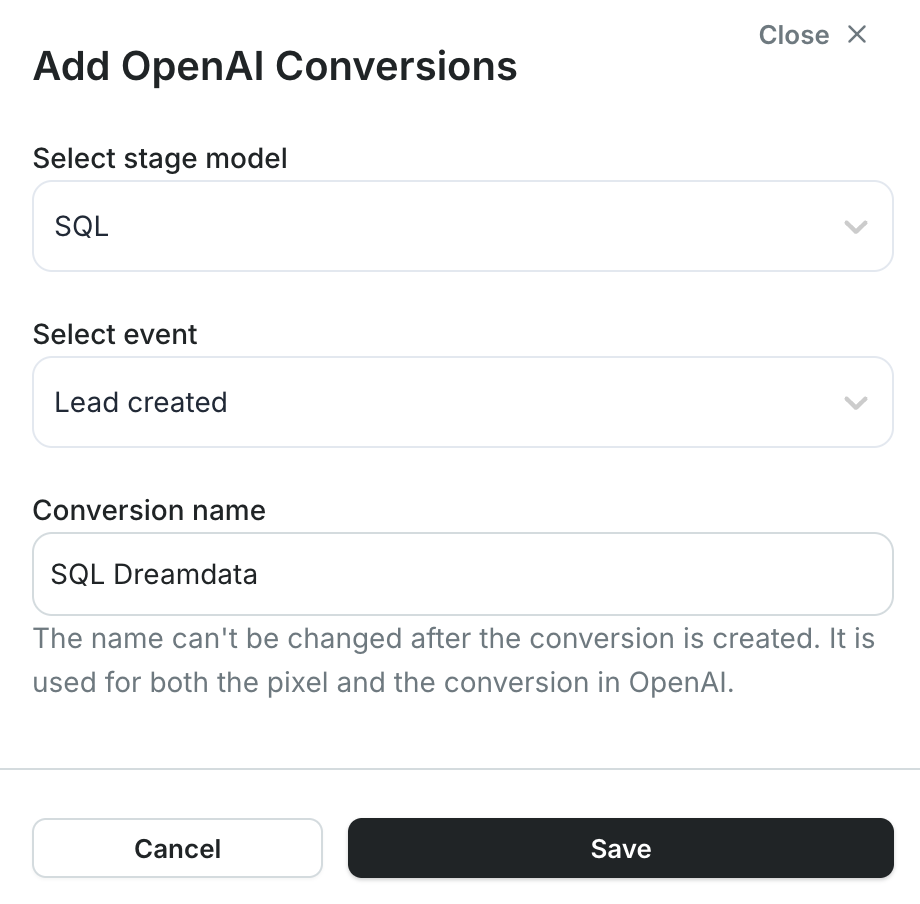
After clicking the Add new button, choose a Stage that you want to measure as a conversion and an Event as which you want your conversions to be measured. By default we use the stage name followed by Dreamdata for the conversion name but you can edit the field and choose your own name.For the event you can either choose one of the values predefined by OpenAI (like Lead created or Trial started) or the custom event option, which will be labelled as the name of the Stage name selected followed by Dreamdata. You can check the OpenAI supported events here.
If you want to use Conversion optimized campaigns we recommend using one of the events predefined by OpenAI.
Custom events cannot be used as optimization goals for Conversion optimized campaigns but are available in conversion reporting. Read more about OpenAI Conversion optimized campaigns here.
After adding the sync, Dreamdata will send the following data to OpenAI (only for events that are at most 7 days old and for which we have a email address or an OpenAI Click ID):
Email Addresses (hashed) and/or OpenAI Click ID (oppref) - both are sent when both exists. otherwise only the one available
First name (hashed)
Last name (hashed)
Phone number (hashed)
Country
City
Region
IP Address
User Agent
Conversion Time (when the contact reached the stage)
Conversion Value (based on your stage model settings)
Conversion Name (Stage name + Dreamdata, defined in the Dreamdata platform)
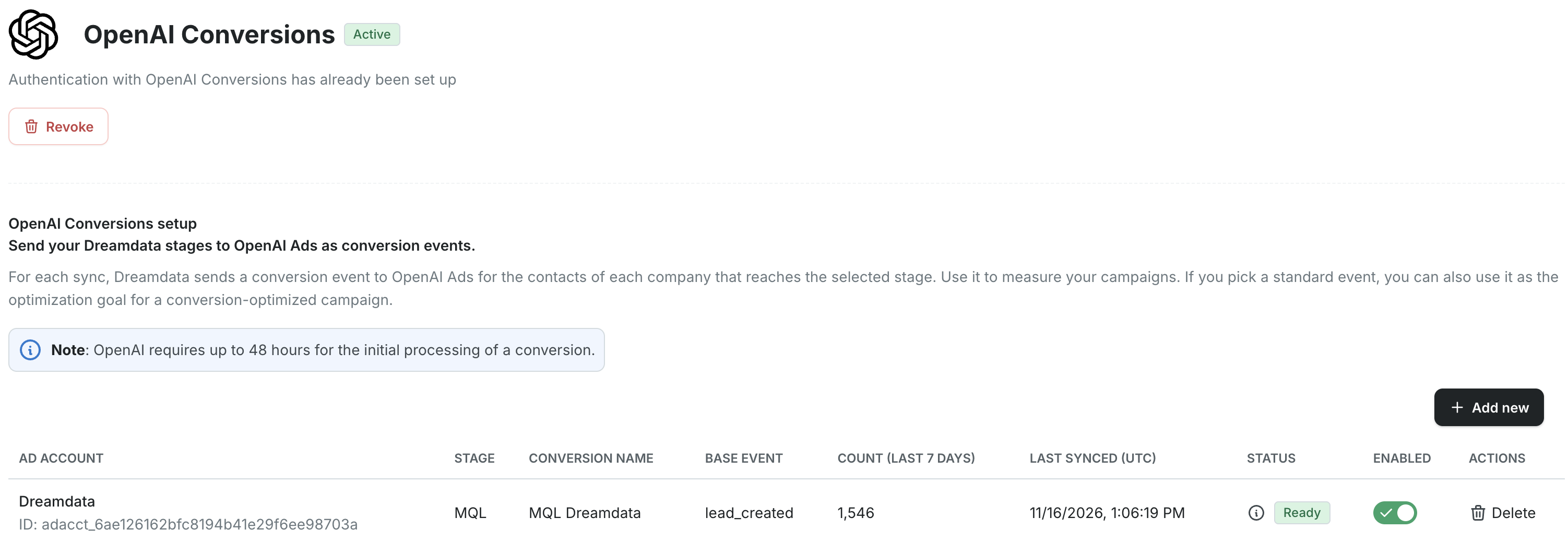
You will be able to see a list with all your conversion sync settings and some properties:
Account name and ID - the name and ID for the selected dataset (click on the name to be taken to your account details page in Microsoft).
Stage - the name of the stage selected to be measured.
Conversion name - the unique name of the conversion used in OpenAI.
Base event - the label of the configured conversion event.
Count (last 7 days) - the amount of contacts that are sent to OpenAI from the latest sync.
Last Synced (UTC) - the time when Dreamdata last synced the stage to OpenAI.
Enabled - on means that we are continuously sending updates to OpenAI based on updates to the measured stage (decide if you want to pause sending updates by turning it off).
Actions - delete the conversion sync settings from Dreamdata.
You're all set 🔥 data will be automatically synced daily for any updates in the selected conversion.
OpenAI requires up to 48 hours for the initial processing of a conversion.
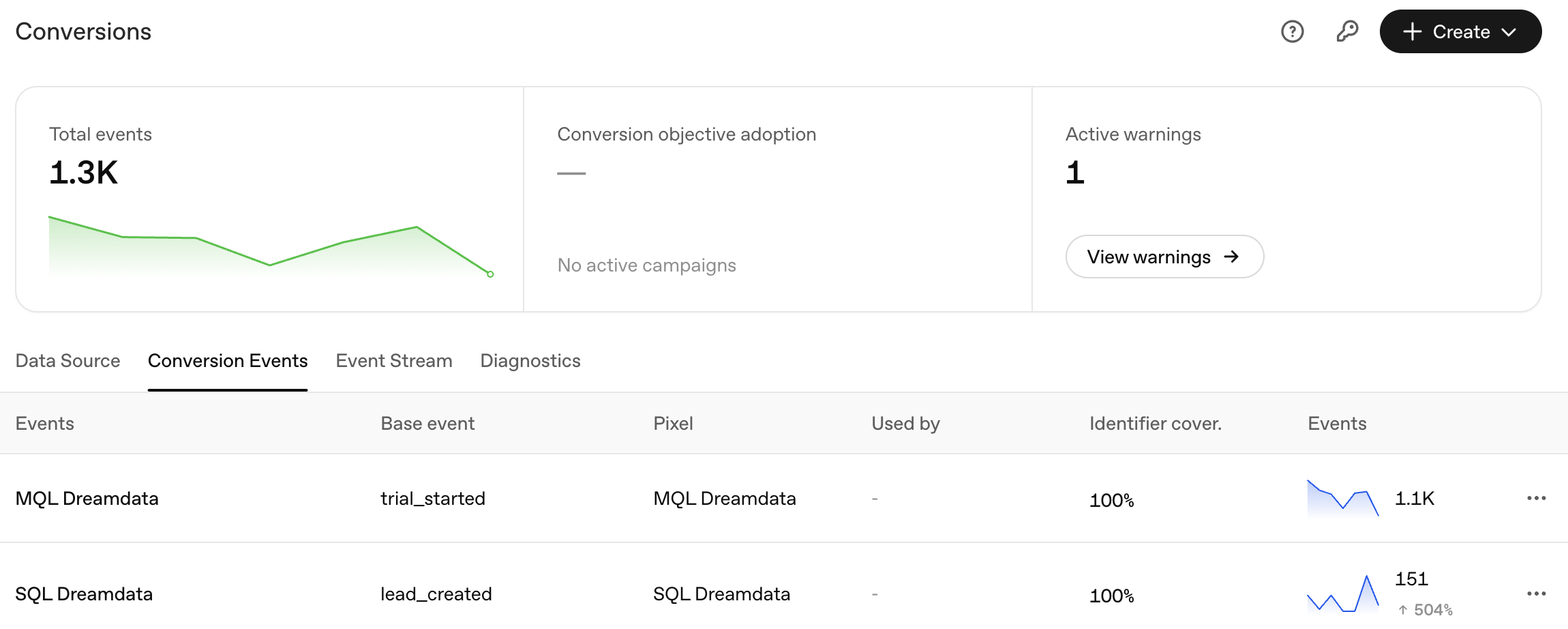
How to view conversion actions in your OpenAI Ads Managers?
Go to Conversions and navigate to Conversion Events. Look for events that contain Dreamdata in the name or for the names that you have chosen in the Dreamdata UI when creating the syncs.
 Updated
by
Andreea Mahu
 If you want to use Conversion optimized campaigns we recommend using one of the events predefined by OpenAI.Custom events cannot be used as optimization goals for Conversion optimized campaigns but are available in conversion reporting. Read more about OpenAI Conversion optimized campaigns here.