What are Scheduled Actions?

Scheduled Actions automatically deliver Dreamdata insights directly to you and your team right when they are needed most
Instead of manually checking reports, you can schedule recurring automated digests—complete with key metrics and AI-generated performance summaries—delivered directly to Slack or Email
Key Benefits
- Deliver insights at the right time: Ensure relevant performance metrics and summaries reach stakeholders ahead of recurring team syncs, sprint planning, or executive reviews.
- Drive alignment and action: Keep marketing, sales, and leadership aligned with regular updates sent directly to shared channels or inboxes.
- Save time and manual effort: Automate repetitive reporting workflows so you never have to remember to pull numbers manually.
.
How to Schedule a Report Delivery action
Follow these steps to schedule an automated recurring report delivery:
.
1. Open the Report and Start Sharing
- Navigate to the report in Dreamdata that you want to schedule.
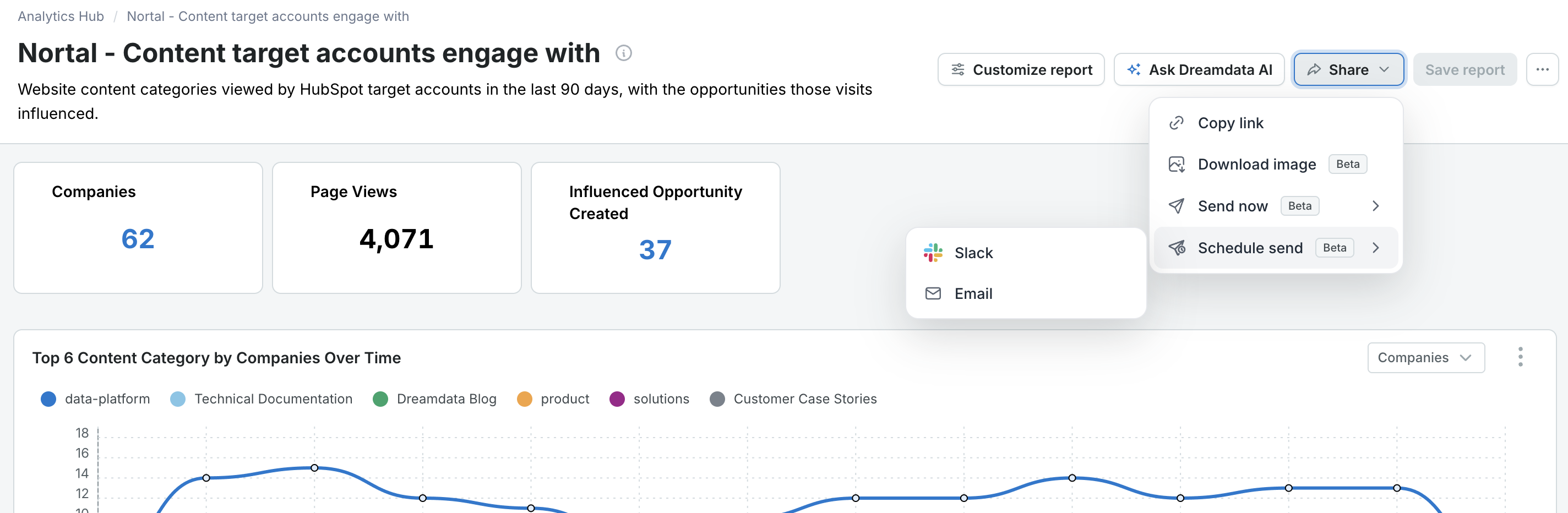
- Click the Share button in the top-right toolbar.
- Hover over or click Schedule send.
- Choose your preferred delivery channel: Email or Slack.
.
2. Configure Your Content
In the setup drawer that appears, customize what information should be included in the message:
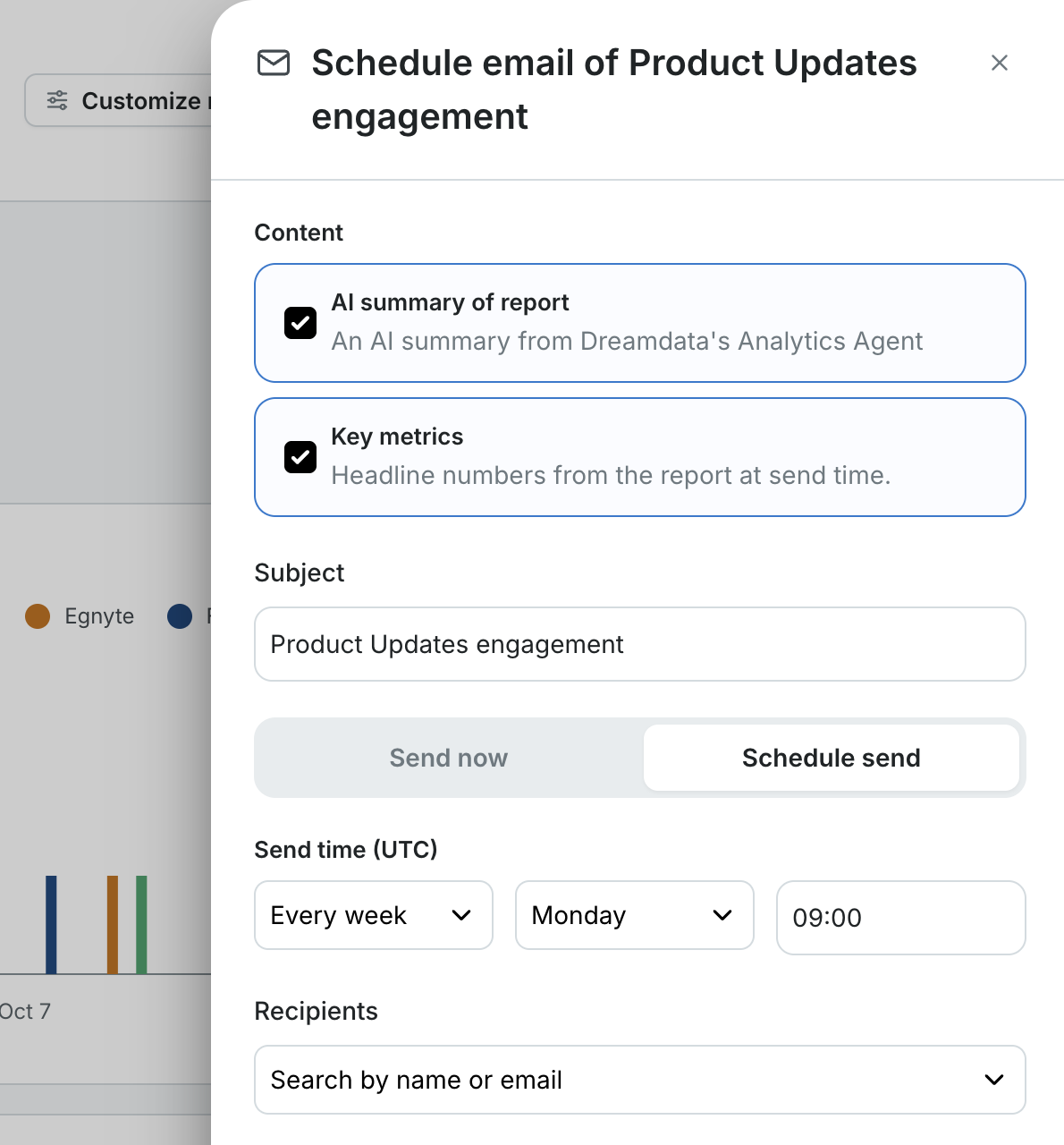
- AI summary of report: Includes an automated, plain-language digest generated by Dreamdata’s Analytics Agent that explains key movements and what is driving them.
- Key metrics: Displays the headline numbers and summary cards directly from the report at the time of send.
.
3. Set the Frequency, Time, and Timezone
Define when and how often the insight digest should arrive:
- Set the frequency cadence (e.g., Daily, Every week, Monthly, or Quarterly).
- Choose the specific day of the week (for weekly deliveries) and the target Send time.
- Verify the configured time zone (e.g., UTC) so the delivery aligns with your meeting schedules.
..
4. Select Recipients or Channels
- For Email: Enter and select the recipient names or email addresses.
- For Slack: Choose the public or private Slack channel where the update should be posted.
.
5. Preview and Save
- Review the generated Email preview or Slack preview on the right side of the screen to verify how your metrics and AI summary will look to recipients.
- Click Schedule send to confirm and activate the scheduled action..
.
One-off Sends ("Send Now")
If you need to send an instant update without setting up a recurring cadence:
- Select Send now from the Share menu or within the configuration view to deliver an immediate snapshot to Email or Slack.
.
Managing Your Schedules
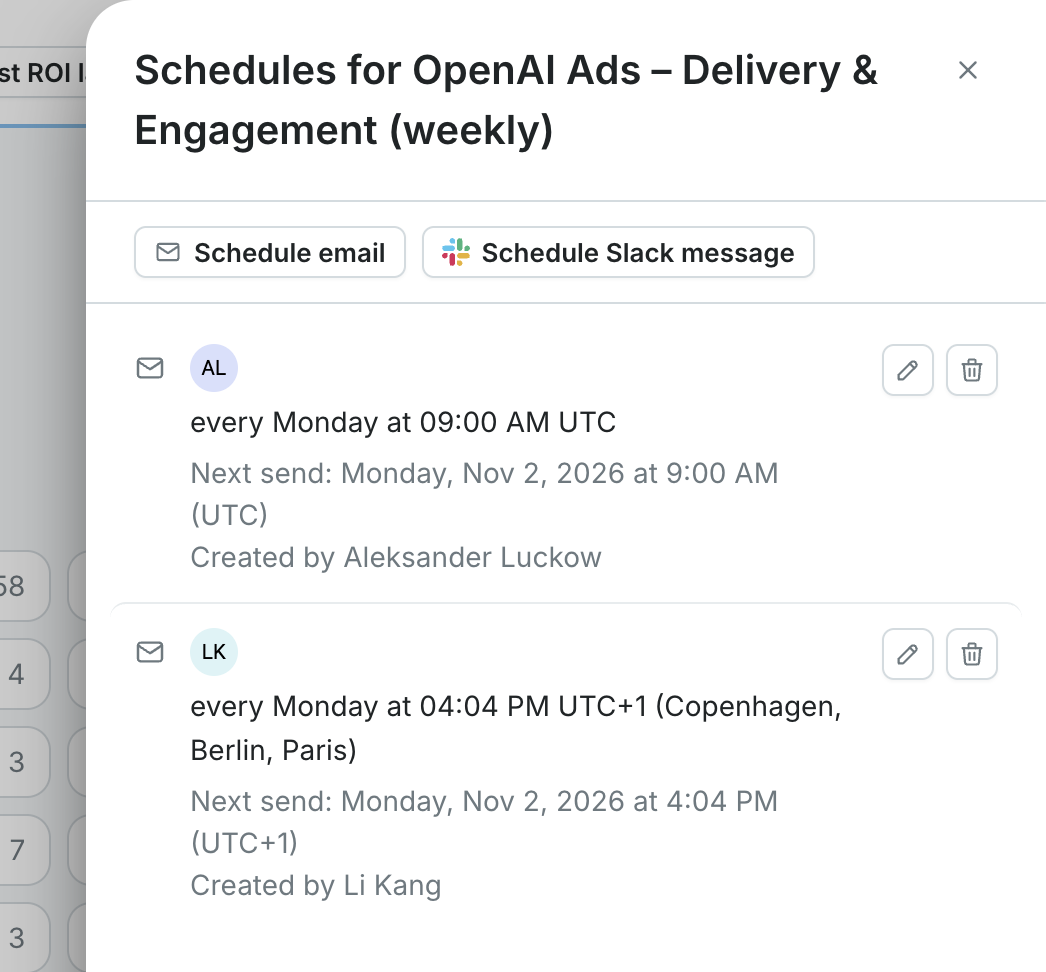
You can view, edit, or delete existing scheduled actions using either of the following methods:
Option 1: From the Analytics Hub
Manage all scheduled actions across your reports directly from the Analytics Hub list:
- Filter by Scheduled Reports: In the filter bar at the top of the Reports and Dashboards list, click the Scheduled filter dropdown (e.g., Scheduled (all) ) to narrow your view to only reports with active deliveries. Reports with active schedules display a calendar badge showing the count of schedules configured. Click the badge directly to view and manage those schedules.
- From the Actions Menu: Click the three-dots menu (⋮) under the Actions column next to any report:
- Choose Schedule send to set up an additional email or Slack delivery.
- Choose View schedules to edit delivery times, add/remove recipients, or delete existing schedules.
Option 2: Directly from a Received Message
Recipients can manage settings right from their inbox or feed without opening Dreamdata first:
- Click the Manage this schedule link at the bottom of any scheduled email or Slack update to modify settings or stop receiving the digest.
