Content List
 Updated
by
Aleksandar Grbic
Updated
by
Aleksandar Grbic
The Analytics Hub home screen helps you find, organize, and manage all of your reports and dashboards.
Navigating the List
- The list is accessible from the main navigation — click Analytics Hub in the side navigation bar.
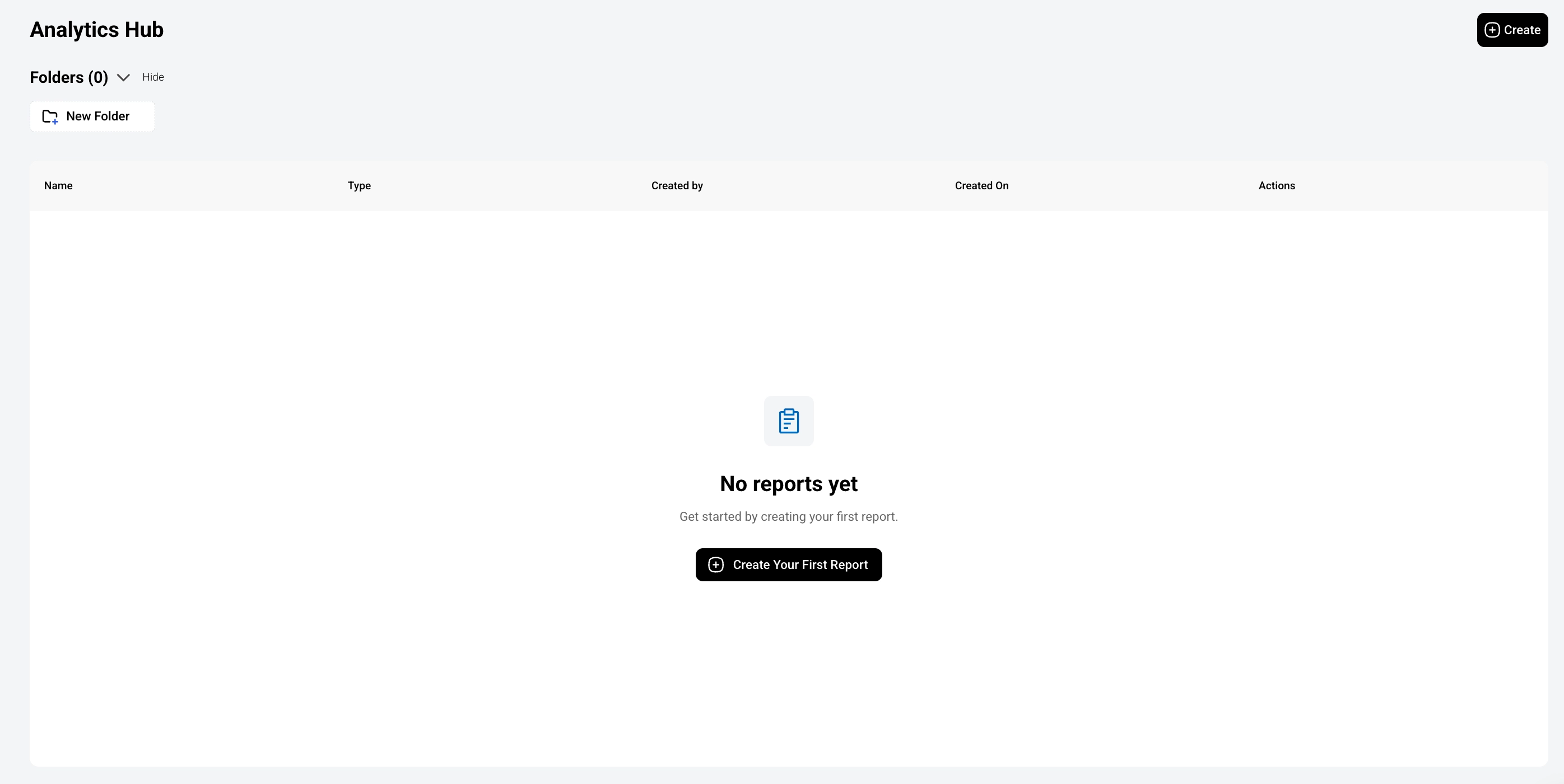
- The first time you visit the analytics hub, the list of reports and dashboards will be empty. Click Create Your First Report.
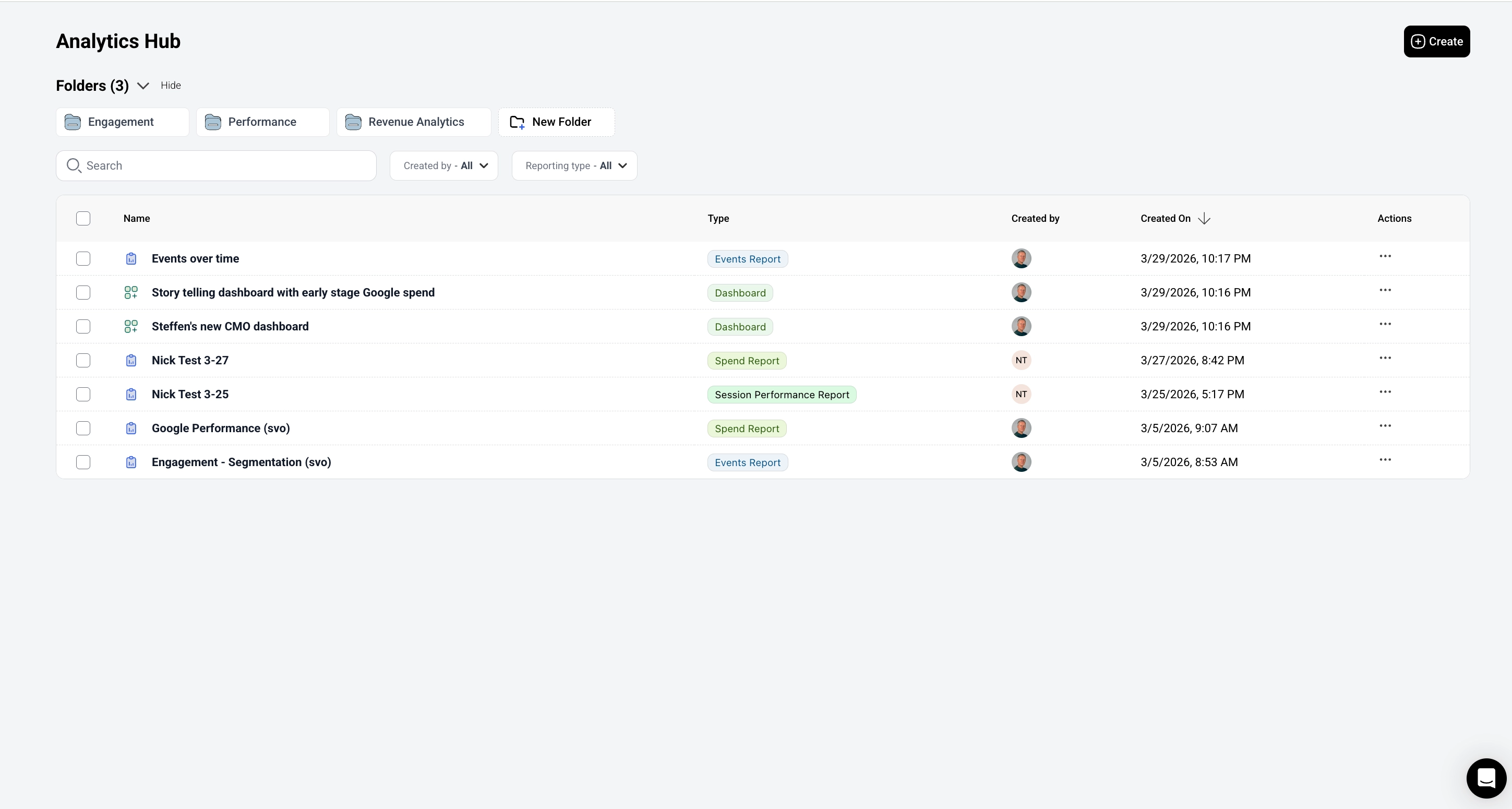
- If you have created reports or dashboards previously, they appear in in the list. Both reports and dashboards are shown in a single list.
- Use the breadcrumb trail at the top of any report or dashboard to navigate back to the list (e.g., "Analytics Hub / ...").
Finding Reports and Dashboards
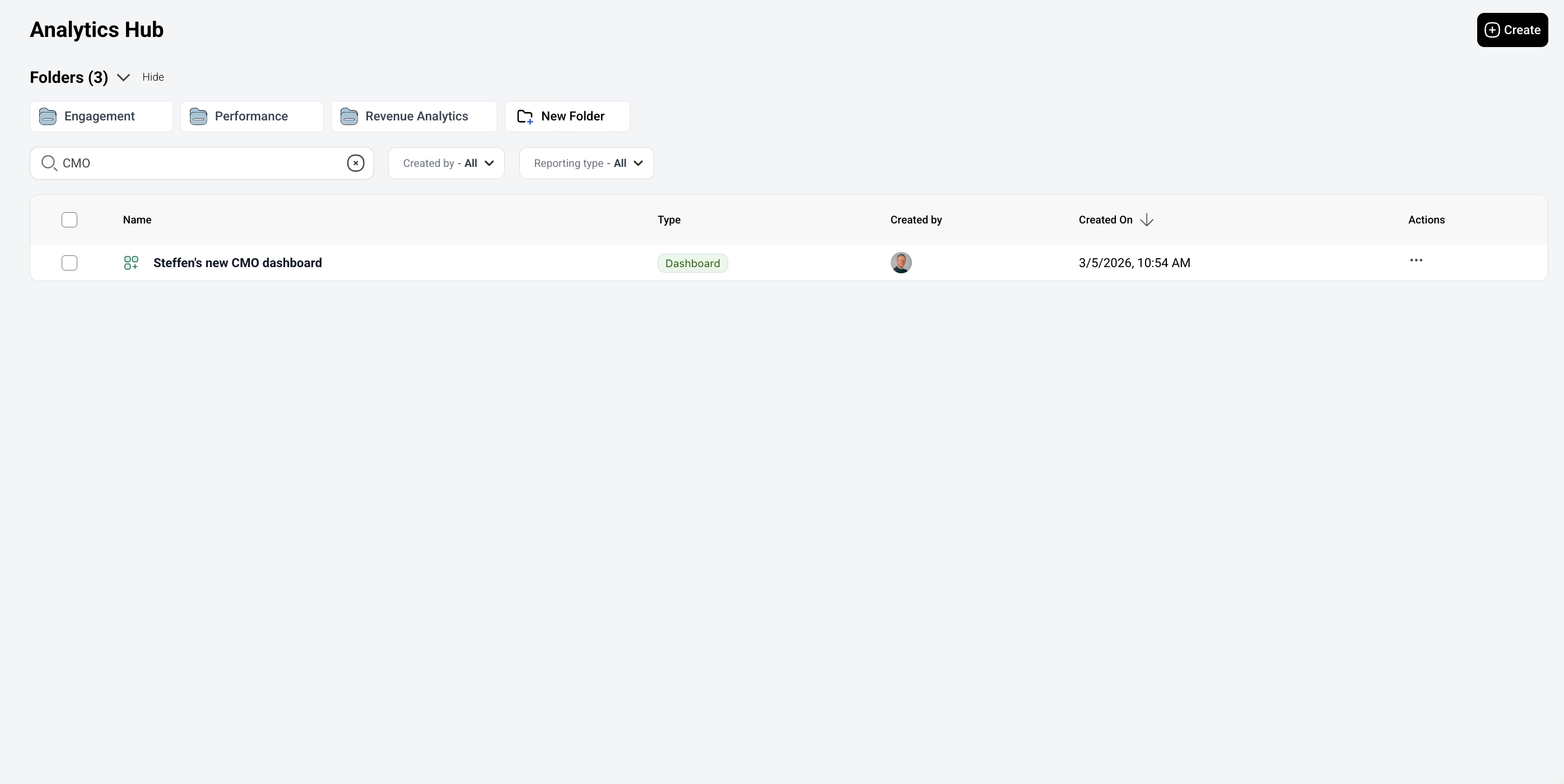
- Search: Use the search bar to find reports and dashboards by name.
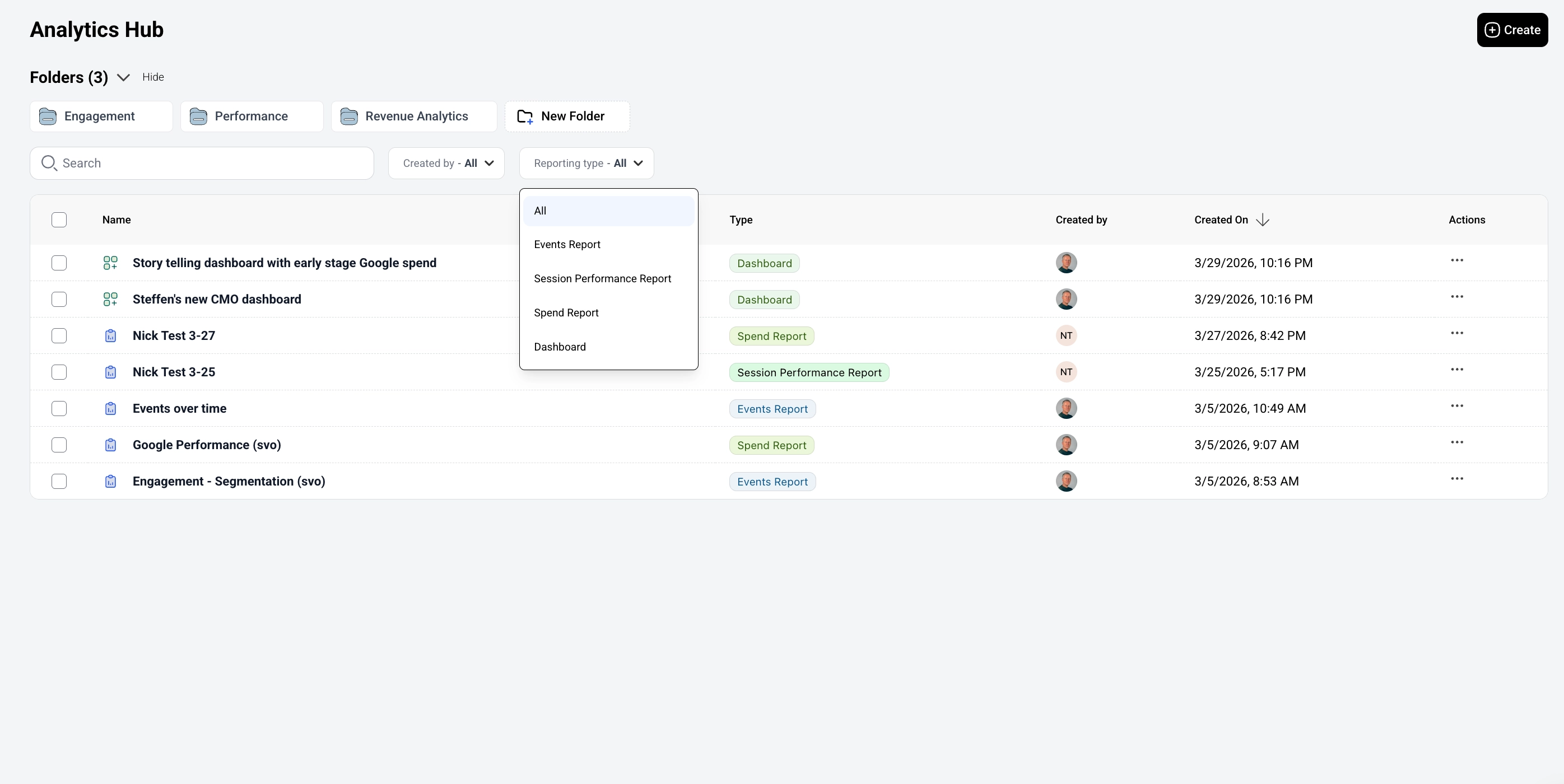
- Filter: Filter the list to show only reports, only dashboards, or both.
- Sort: Sort by name, date created, or last modified.
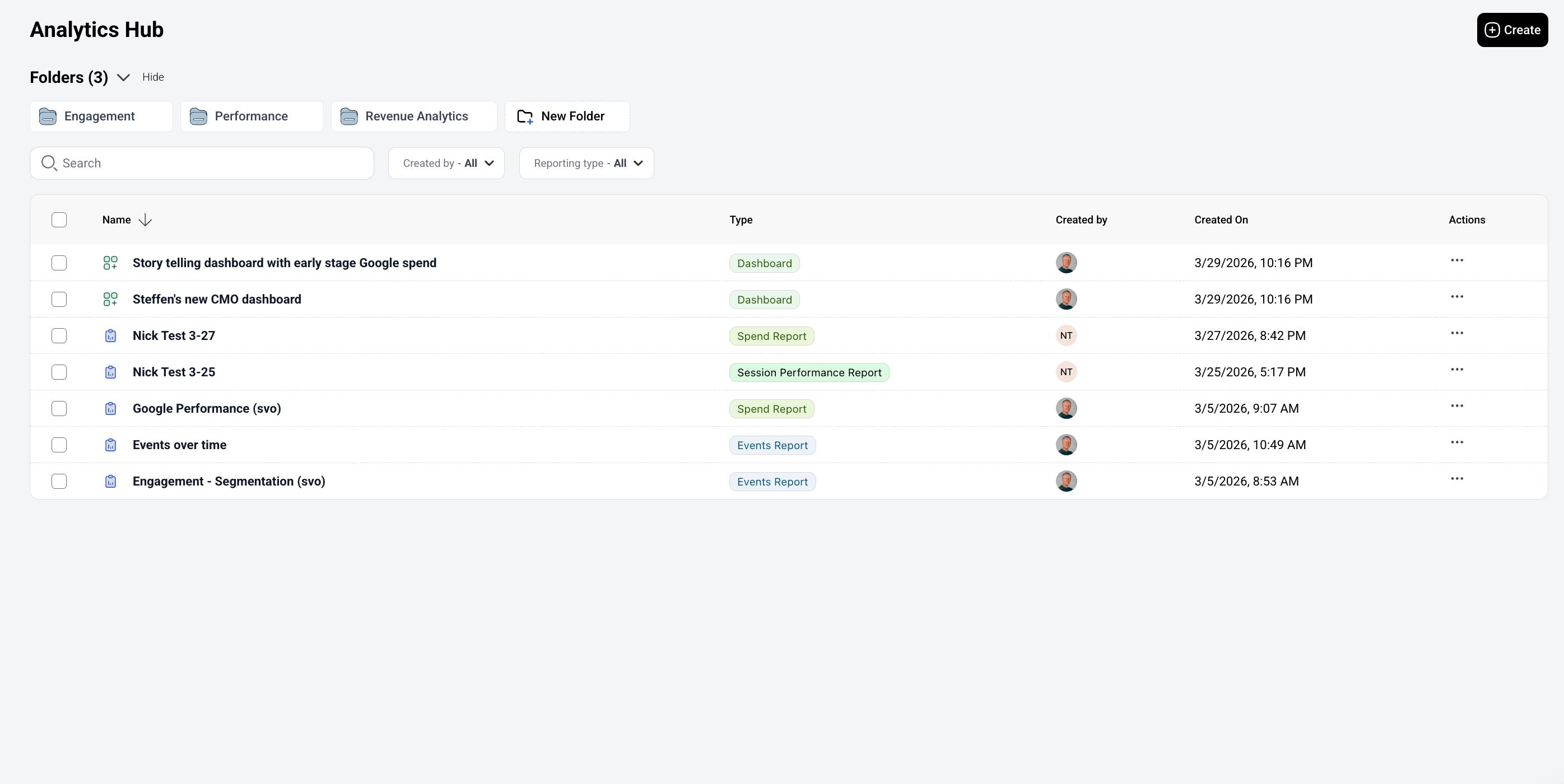
Creating New Reports and Dashboards
From the list view:
- Click Create New > Report to open the Template Gallery. From there, either pick a pre-configured template (recommended) or scroll down to Create from Scratch to choose a report type and build a report manually. See the Reports guide for details.
- Click Create New > Dashboard to start a new dashboard. See the Dashboards guide for details.
Managing Reports and Dashboards
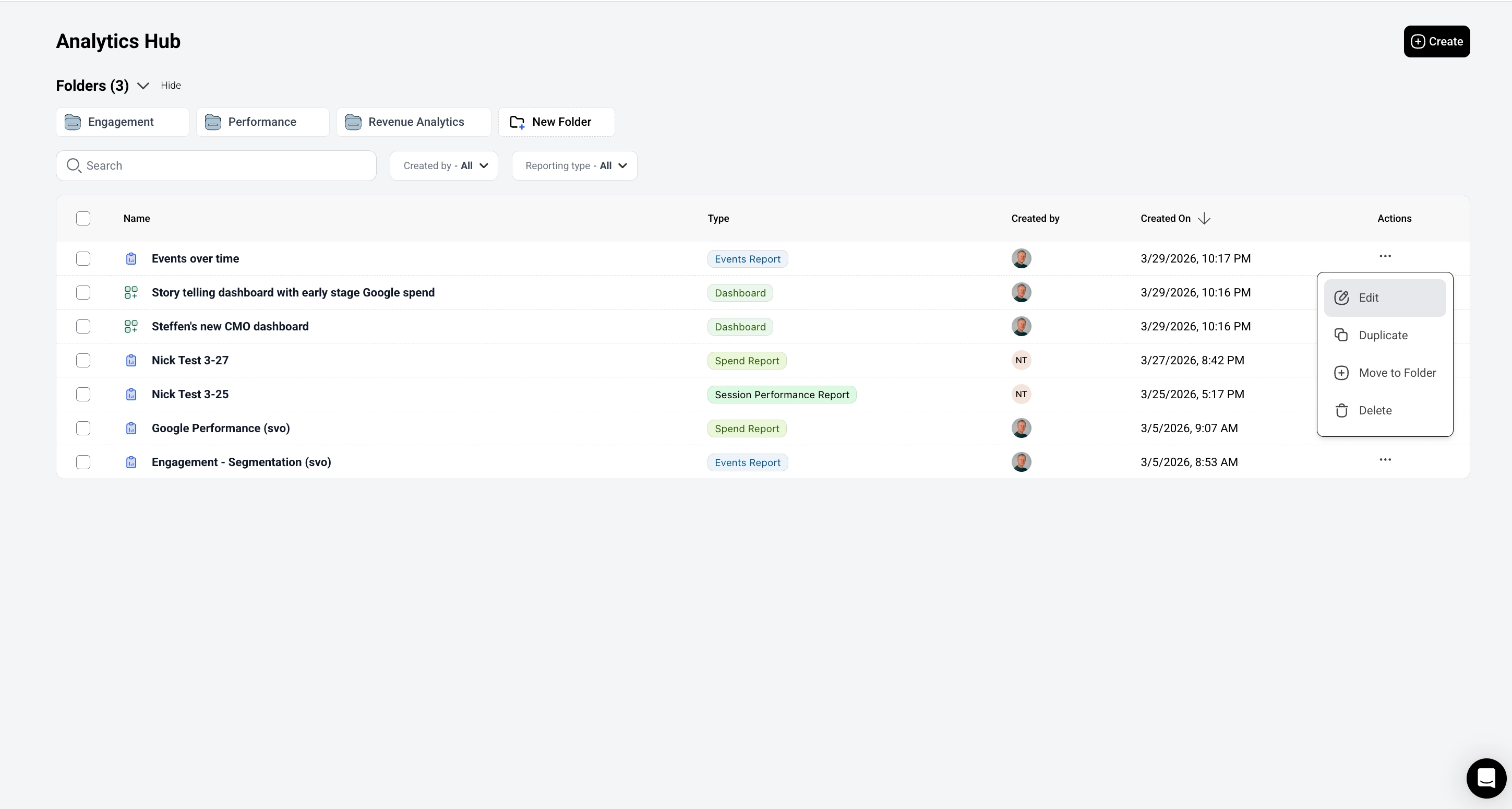
For each item in the list, you can:
- Open — Click the name to open the report or dashboard.
- Edit — Click “Edit” to change the report’s name or description without leaving the list.
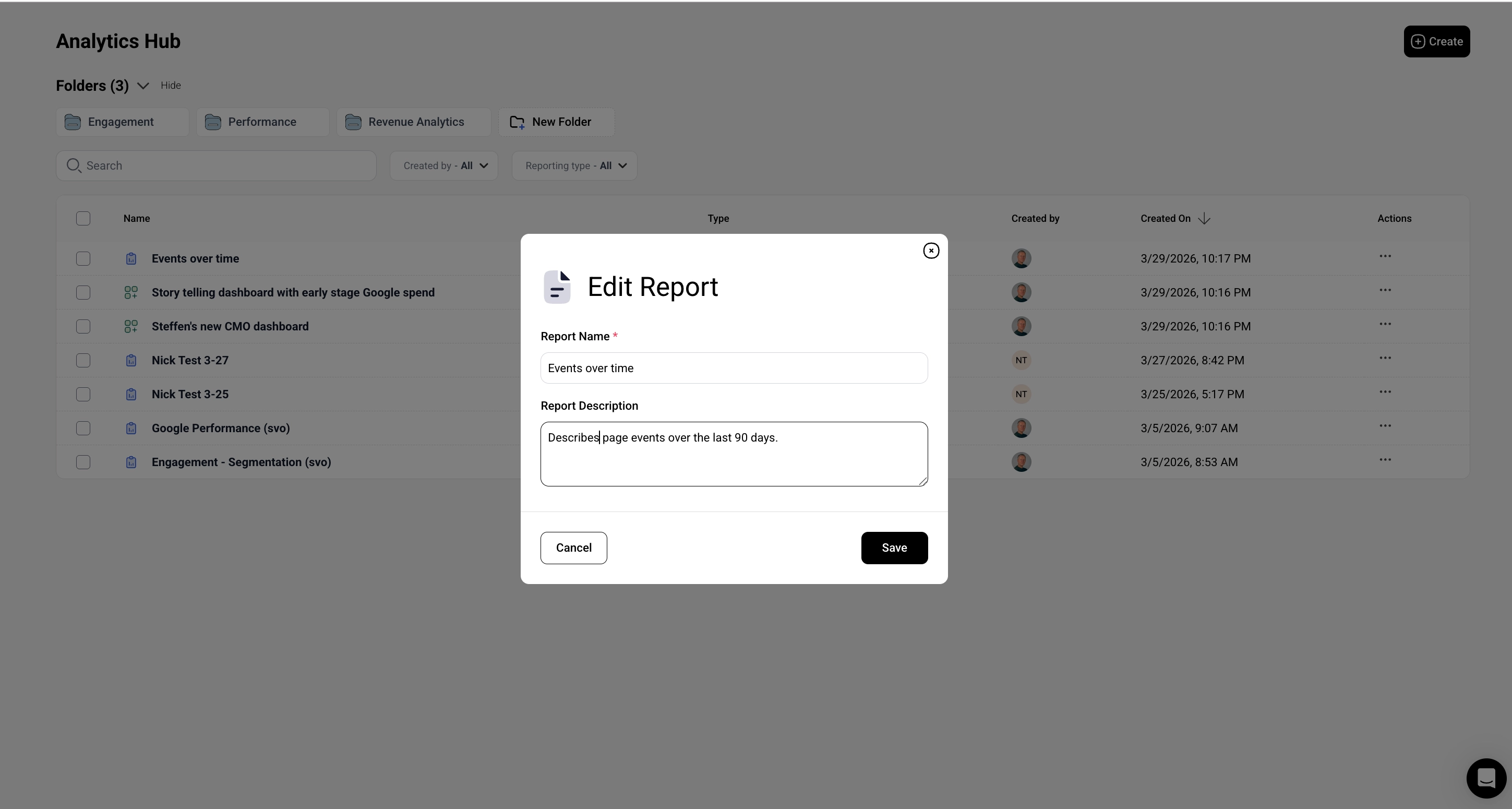
- Duplicate - Create a new
- Delete — Remove a report or dashboard you no longer need.
Folders
You can group similar reports and dashboards into Folders. This can be helpful if you have many reports and dashboards.
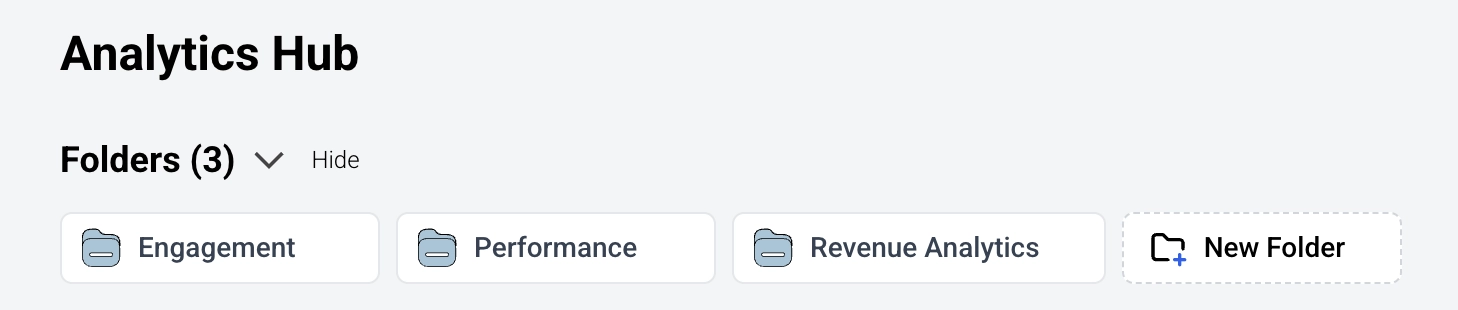
Creating a New Folder
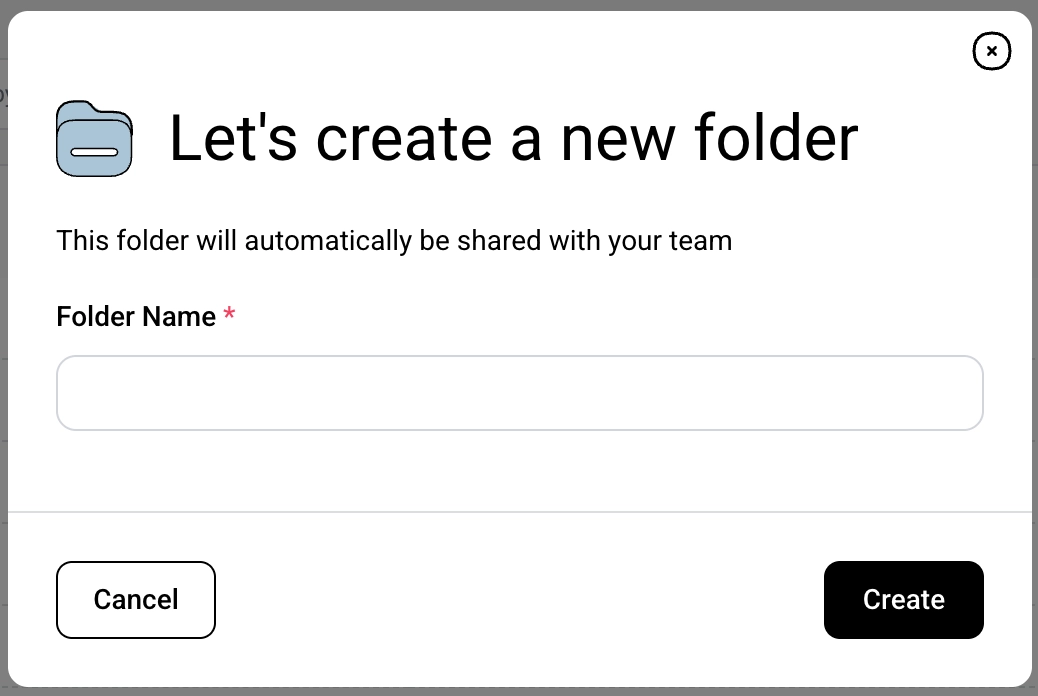
- Click the New Folder button at the end of the folder list
- Choose a name and click Create
Editing a Folder

- Once you’ve created a folder, it is possible to change the folder’s name
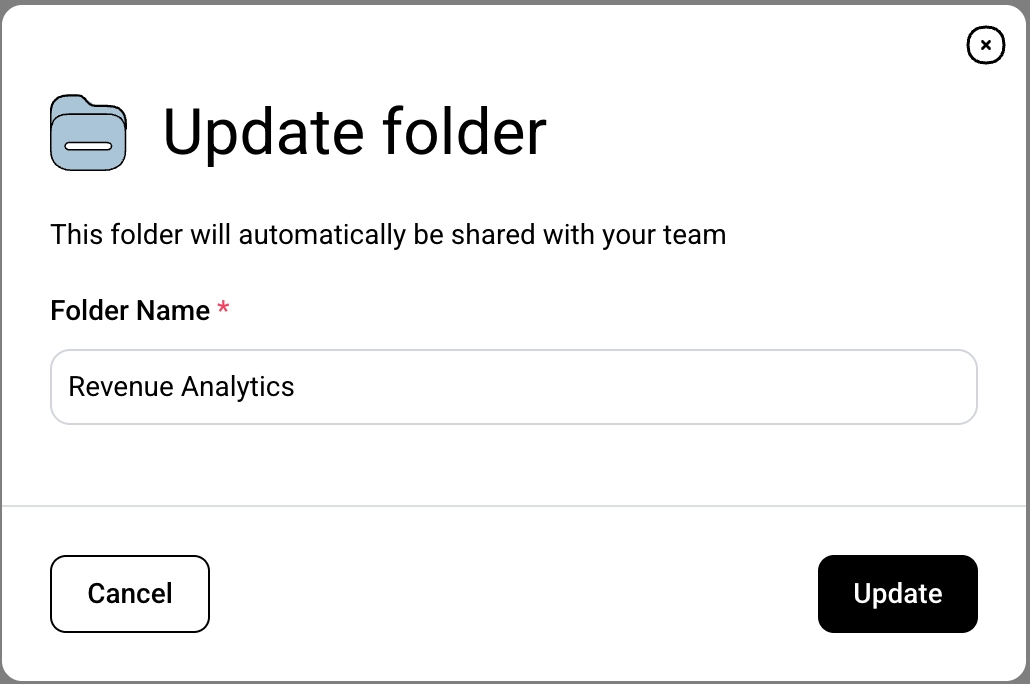
- Click the name of the folder you’d like to edit, then click Edit Folder in the right hand corner of the screen
- In the edit dialog, you can change the folder’s name. Click Update to save the change
Deleting a Folder
- Once you’ve created a folder, it is possible to delete the folder
- Click the name of the folder you’d like to edit, then click Delete Folder in the right hand corner of the screen
Note: Deleting a folder does not delete the items within it. Instead any dashboards or reports are moved out of the folder.
Report Types and Tags
Each report belongs to a report type (e.g., Paid Performance, Analyze Engagement). Report types appear as badges next to the report name and can be used to filter the list. See the Report Types guide for details on the six available types.
